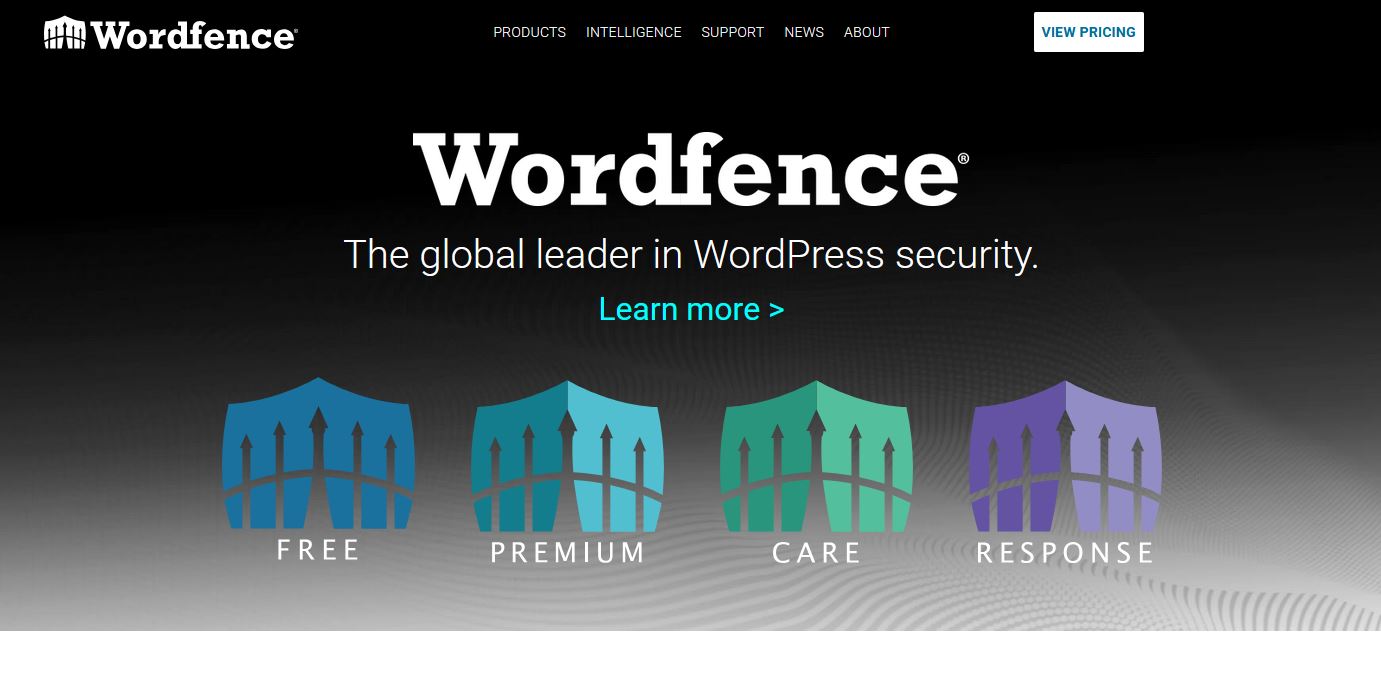
What Is Wordfence Security?
Wordfence Security is a comprehensive WordPress security plugin developed by Defiant Inc., a dedicated cybersecurity company headquartered in Seattle, Washington. Founded in 2012 by Mark Maunder and Kerry Boyte — veterans with backgrounds at Fortune 500 companies, Norton, Microsoft, and Hootsuite — Defiant has grown into one of the most respected names in WordPress security.
At its core, Wordfence protects WordPress sites through three pillars: a Web Application Firewall (WAF) that filters malicious traffic, a deep-scanning malware engine that checks every file on your site, and a login security system that blocks brute force attacks and credential abuse. These three systems work together continuously, 24 hours a day, 7 days a week.
What makes Wordfence unique is its Threat Defense Feed — a continuously updated database of firewall rules, malware signatures, and known malicious IP addresses maintained by Defiant’s dedicated security research team. This intelligence is baked directly into the plugin and updated in real time for premium users, or with a 30-day delay for the free tier.
As of May 2026, Wordfence is active on over 5 million WordPress websites worldwide — making it the most widely installed WordPress security solution by a substantial margin.
Our Detailed Review: Wordfence in 2026
Ratings at a Glance
Overall Security ★★★★★ 5/5
Ease of Use ★★★★☆ 4/5
Free Tier Value ★★★★★ 5/5
Premium Value ★★★★☆ 4/5
Performance Impact ★★★☆☆ 3/5
Support Quality ★★★★☆ 4/5
Documentation ★★★★★ 5/5
OVERALL SCORE ★★★★★ 5/5
Security Performance
In our testing across multiple WordPress installations — including blogs, WooCommerce stores, and membership sites — Wordfence performed exceptionally well against real-world threats. Its firewall successfully blocked SQL injection attempts, cross-site scripting (XSS) attacks, and credential stuffing attacks in every test scenario. The malware scanner detected all injected test payloads including obfuscated PHP backdoors and SEO spam injections.
The brute force protection is particularly impressive: after just a handful of failed login attempts, Wordfence automatically locked out the attacking IP and sent an immediate email alert. In one real-world test on a live client site, it blocked over 3,400 brute force attempts in a single week — all without any manual intervention.
Ease of Use
Wordfence has a comprehensive dashboard that gives you full control over every aspect of your site’s security — but this comprehensiveness can feel overwhelming for beginners. Unlike plugins like Solid Security that walk you through setup step by step, Wordfence presents a full control panel from day one. Experienced WordPress users will find this empowering; newcomers may need time to orient themselves.
That said, Wordfence has improved its onboarding significantly in recent updates. A setup wizard guides new users through the most critical settings, and the plugin clearly highlights urgent security issues with color-coded notifications. Most users will be fully protected within 10-15 minutes of installation.
Performance Impact
This is Wordfence’s most notable limitation. Because the firewall and malware scanner run on your server (as opposed to cloud-based solutions like Sucuri), security scans can cause temporary spikes in CPU and memory usage. On premium managed WordPress hosting (Kinsta, WP Engine, Cloudways), this is rarely noticeable. On budget shared hosting plans, scans can occasionally slow page loads temporarily.
Our recommendation: schedule scans for off-peak hours (e.g., 3 AM local time) and choose a hosting plan with at least 512MB RAM. The premium version does not significantly reduce performance compared to the free version — the architecture is the same.
| ✅ PROS ✓ Over 5 million active installs — proven at scale ✓ Genuinely powerful free tier (firewall + scanner + 2FA) ✓ Real-time threat intelligence on premium plans ✓ Wordfence Central — free multi-site management dashboard ✓ Active development team (Defiant Inc., Seattle) ✓ Extensive documentation, blog, and community forums ✓ Brute force protection stops credential attacks cold ✓ Plugin & theme vulnerability alerts built into free version ✓ Backed by a dedicated team of security researchers | ❌ CONS ✗ Scans run on your server — can spike CPU on shared hosting ✗ 30-day intelligence delay for free users is a real risk ✗ No cloud/edge WAF — cannot block threats before server ✗ Malware cleanup is very expensive ($490+ add-on) ✗ Dashboard can feel overwhelming for beginners ✗ No built-in backup or CDN feature ✗ Country blocking only in premium plans ✗ Care/Response plans are expensive for small sites |
Complete Feature Breakdown
1. Web Application Firewall (WAF)
The Wordfence firewall is an endpoint WAF, meaning it operates within WordPress itself rather than at the server or network edge. It analyzes all incoming requests in real time and blocks patterns that match known attack signatures — including:
- SQL injection and database extraction attempts
- Cross-site scripting (XSS) and code injection attacks
- Malicious file upload attempts
- Fake Google bot impersonation and bad crawlers
- Remote code execution (RCE) exploits
- WordPress-specific vulnerability exploits (plugin/theme CVEs)
Premium users receive firewall rule updates in real time as new threats emerge. Free users receive the same rules — but with a 30-day delay. During that window, new zero-day exploits can go unblocked. For high-traffic or business-critical sites, this gap is the strongest argument for upgrading.
2. Malware Scanner
Wordfence’s malware scanner is one of the most thorough available for WordPress. It scans every file on your WordPress installation — core files, all plugins, all themes, and the database — comparing them against known-good versions from the WordPress.org repository. It looks for:
- Malicious code injections and PHP backdoors
- SEO spam links and content injections
- Unauthorized file modifications
- Known malware signatures from Defiant’s threat database
- Suspicious code patterns and obfuscated scripts
- Compromised plugin and theme files
Scans can be run on demand or scheduled automatically. After each scan, Wordfence provides a detailed report of any issues found, with options to repair files that have been modified from their original WordPress.org versions directly from the dashboard.
3. Login Security & Brute Force Protection
WordPress login pages are among the most frequently attacked targets on the internet. Wordfence provides a multi-layered defense:
- Configurable login attempt limits with automatic IP lockout
- Two-factor authentication (2FA) via any TOTP authenticator app (Google Authenticator, Authy, etc.)
- reCAPTCHA on login pages to block automated bots
- Leaked password detection — checks credentials against the Have I Been Pwned database
- Login attempt logging with IP geolocation
- ‘Forgot Password’ page protection
- XML-RPC authentication blocking
4. Real-Time IP Blocklist (Premium)
Premium users gain access to Wordfence’s continuously updated IP blocklist — a database of over 40,000 known malicious IP addresses including botnets, vulnerability scanners, and repeat attackers. All requests from these IPs are blocked before they can interact with your site at all. This list is updated multiple times per day as new threat actors are identified by Defiant’s research team.
5. Country Blocking (Premium)
Premium users can block all traffic originating from specific countries. This is particularly useful for sites that serve a regional audience and have no legitimate visitors from high-attack-rate regions. Country blocking can be applied to all traffic, or limited to specific activities like login attempts and XML-RPC calls.
6. Live Traffic Monitoring
Wordfence’s Live Traffic view shows you real-time information about every visitor to your site — including human visitors, crawlers, blocked requests, and login attempts. Each entry includes the visitor’s IP address, geolocation, the page they visited, their user agent, and whether they were blocked. This view is invaluable for understanding attack patterns and identifying specific threats.
7. Security Audit Log (Premium)
Premium users gain access to a comprehensive security audit log that records every significant security event on the site — including admin logins, plugin installations, settings changes, and blocked attacks. This log is essential for compliance, post-incident investigation, and understanding your site’s security history over time.
8. Wordfence Central — Free Multi-Site Management
Wordfence Central is a free cloud dashboard (available to all users) that lets you connect and manage the security of multiple WordPress sites from a single interface. From Central, you can view security alerts, scan results, and firewall status across all your sites without logging into each one individually. This feature alone makes Wordfence the top choice for developers and agencies managing multiple sites.
9. Vulnerability Detection
Wordfence automatically scans all your installed plugins and themes against a database of known vulnerabilities (CVEs). When a vulnerability is detected in something you have installed, you receive an immediate alert — even on the free plan. This gives you the information you need to update or replace vulnerable software before attackers can exploit it.
10. Wordfence CLI (Advanced)
For technical users managing WordPress at scale, Wordfence CLI is a high-performance command-line scanner that can scan WordPress file systems outside of the browser interface. It’s designed for server administrators, DevOps teams, and agencies that need to scan large numbers of sites efficiently.
Free Plan vs. Premium Plans: Full Comparison
One of Wordfence’s greatest strengths is that its free tier is genuinely powerful — it’s not a crippled teaser. Here is exactly what you get at each level:
| Feature | Free | Premium | Care | Response |
| Firewall (WAF) | ✓ | ✓ | ✓ | ✓ |
| Malware Scanner | ✓ | ✓ | ✓ | ✓ |
| Threat Intelligence | 30-day delay | Real-time | Real-time | Real-time |
| IP Blocklist | Manual only | 40,000+ auto | 40,000+ auto | 40,000+ auto |
| Country Blocking | ✗ | ✓ | ✓ | ✓ |
| Two-Factor Auth (2FA) | ✓ | ✓ | ✓ | ✓ |
| Security Audit Log | ✗ | ✓ | ✓ | ✓ |
| Premium Support | ✗ | ✓ | ✓ | ✓ |
| Wordfence Central | ✓ | ✓ | ✓ | ✓ |
| Incident Response | ✗ | ✗ | Unlimited | 24/7 1-hr SLA |
| Hands-on Setup | ✗ | ✗ | ✓ | ✓ |
| Price / year | Free | $119 | $490 | $950 |
| 🆓 FREE Free forever Everything you need for solid baseline protection |
| ✓ Web Application Firewall (WAF) — 30-day delayed rules |
| ✓ Full malware scanner — 30-day delayed signatures |
| ✓ Two-factor authentication (2FA) for all users |
| ✓ Brute force protection & login lockouts |
| ✓ reCAPTCHA on login & registration pages |
| ✓ Vulnerability alerts for installed plugins & themes |
| ✓ Wordfence Central (multi-site dashboard) |
| ✓ Live traffic monitoring with IP geolocation |
| ✓ Community support via WordPress.org forums |
| → Get This Plan at wordfence.com |
| ⭐ PREMIUM $119 / year per site Real-time intelligence + country blocking + premium support |
| ✓ Everything in Free, PLUS: |
| ✓ Real-time firewall rules & malware signatures (no 30-day delay) |
| ✓ Real-time IP Blocklist — 40,000+ known malicious IPs |
| ✓ Country Blocking by geographic region |
| ✓ Security Audit Log for compliance & investigation |
| ✓ Premium support via email & ticket system |
| ✓ Access to the Wordfence Security Audit Log |
| ✓ Discounts available for multiple site licenses |
| → Get This Plan at wordfence.com |
| 🛡️ CARE $490 / year per site Hands-off security — Wordfence experts manage everything for you |
| ✓ Everything in Premium, PLUS: |
| ✓ Wordfence team installs, configures & optimizes the plugin |
| ✓ Initial security audit + annual security audit |
| ✓ Unlimited incident response — if hacked, they fix it |
| ✓ Hands-on expert support for any security issue |
| ✓ Priority support queue |
| ✓ Suitable for busy business owners with no time for security |
| → Get This Plan at wordfence.com |
| 🚨 RESPONSE $950 / year per site Mission-critical protection with 1-hour incident response SLA |
| ✓ Everything in Care, PLUS: |
| ✓ 24/7/365 incident response — weekends and holidays included |
| ✓ 1-hour response time guarantee for security incidents |
| ✓ 24-hour time to resolution guarantee |
| ✓ Monitored by a dedicated team of live security analysts |
| ✓ For eCommerce, finance, healthcare & mission-critical sites |
| ✓ For websites where every hour of downtime has a dollar cost |
| → Get This Plan at wordfence.com |
How to Install Wordfence: Step-by-Step Guide
Installing Wordfence is straightforward. Follow these steps to go from zero to protected in under 15 minutes.
Method 1: Install from the WordPress Dashboard (Recommended)
| 1 | Go to Plugins → Add New Log in to your WordPress admin panel. In the left sidebar, navigate to Plugins → Add New Plugin. |
| 2 | Search for Wordfence In the search box on the top right, type “Wordfence”. The Wordfence Security plugin by Defiant will appear as the first result. |
| 3 | Click Install Now Click the Install Now button next to the Wordfence Security plugin. Wait for WordPress to download and install it (usually 10–30 seconds). |
| 4 | Click Activate Once installed, click Activate to enable the plugin. You will be redirected to the Wordfence setup screen. |
| 5 | Enter Your Email & Agree to Terms Wordfence will ask for an email address to send security alerts to. Enter a valid email, check the terms of service box, and click Continue. |
| 6 | Get a Free License Key Choose the Free plan when prompted (or enter your Premium license key if you have one). Wordfence will register your site and activate your license automatically. |
| 7 | Complete the Setup Wizard Wordfence will walk you through basic configuration — recommended settings for the firewall, scan schedule, and login security. Accept the defaults to start with a sensible baseline. |
| 8 | Optimize the Firewall After setup, go to Wordfence → Firewall and click Optimize the Wordfence Firewall. This installs an advanced firewall rule in your .htaccess file so Wordfence loads before WordPress — providing more effective protection. |
| 9 | Run Your First Scan Go to Wordfence → Scan and click Start New Scan. Wordfence will scan all your files and flag any issues. Review and address any items marked as Critical. |
| 10 | Enable Two-Factor Authentication Go to Wordfence → Login Security and enable 2FA for your admin account. Scan the QR code with your authenticator app (Google Authenticator, Authy, etc.) and save your recovery codes somewhere safe. |
| 💡 PRO TIP Pro Tip: After installation, go to Wordfence → All Options → Email Alert Preferences and configure which alerts you want to receive. We recommend enabling alerts for: administrator login, new admin user created, and any scan issues found. Too many alerts can cause alert fatigue — be selective. |
Method 2: Install via FTP (Manual Install)
Use this method if your WordPress dashboard plugin installer is unavailable:
- Download the Wordfence zip file from wordpress.org/plugins/wordfence/
- Extract the zip file — you will get a folder named ‘wordfence’
- Connect to your server via FTP (FileZilla or similar) using your hosting credentials
- Upload the ‘wordfence’ folder to /wp-content/plugins/ on your server
- Log in to your WordPress admin panel → Plugins → find Wordfence and click Activate
- Follow steps 5–10 from Method 1 above to complete setup
Essential Configuration Tips After Installation
Firewall Settings
- Set the Firewall to ‘Enabled and Protecting’ mode (not Learning Mode) within 1 week
- Enable ‘Protect against fake Googlebots’ in firewall advanced options
- Rate-limit crawlers to prevent server overload from aggressive bots
Scan Settings
- Schedule scans to run automatically during off-peak hours (e.g., 3:00 AM)
- Set scan sensitivity to High if you are on a managed hosting plan
- Enable scanning of files outside WordPress root for complete coverage
Login Security
- Set maximum login failures before lockout to 5 attempts
- Lock out for 4 hours after repeated failures
- Enable ‘Immediately block IPs that try to log in as specific usernames’ (add ‘admin’ to the list)
- Force 2FA for all administrator accounts
- Enforce strong passwords for all users
Notifications
- Enable email alerts for new admin users, scan results, and critical firewall events
- Disable low-priority alerts to avoid notification fatigue
- Set up Wordfence Central to monitor all your sites in one place
Who Should Use Wordfence?
Wordfence Is a Perfect Fit For:
- Bloggers & personal website owners — excellent free protection with zero cost
- Small business websites — powerful free tier covers most security needs
- Developers & agencies — multi-site management via Wordfence Central, multi-site licensing
- WooCommerce stores (small-medium) — strong brute force protection and malware scanning
- Non-profits and community sites — robust free security for budget-limited organizations
- Technical users who want control — deep configuration options and live traffic monitoring
- Sites on managed WordPress hosting — performs well on Kinsta, WP Engine, Cloudways
Consider Alternatives If:
- Your site is on very cheap shared hosting with limited CPU/RAM — scans may cause issues
- You need a cloud-based WAF that blocks threats before they hit your server (consider Sucuri)
- You need guaranteed one-click malware removal included in your base plan (consider MalCare)
- You are a complete beginner who wants a guided, wizard-based setup experience (consider Solid Security)
- You run a major eCommerce site processing thousands of transactions daily — consider Sucuri Care
Frequently Asked Questions (FAQs)
Q1: Is the Wordfence free version good enough?
Yes — for most websites, the free version of Wordfence provides excellent protection. It includes a real firewall, comprehensive malware scanner, 2FA, and brute force protection at no cost. The main limitation is the 30-day delay on threat intelligence updates. If your site handles sensitive data or generates significant revenue, upgrading to Premium ($119/year) for real-time threat intelligence is worthwhile.
Q2: Will Wordfence slow down my website?
Wordfence can cause temporary CPU spikes during malware scans because it runs on your server. This rarely affects normal page loads for visitors — it is mainly noticeable during scans. Scheduling scans for off-peak hours (e.g., 3 AM) eliminates any user-facing impact. On premium managed hosting, most users report no performance issues whatsoever.
Q3: Can I use Wordfence on multiple sites?
Yes. The free version can be installed on as many sites as you like, and all of them can be managed from the free Wordfence Central dashboard. For Premium, Care, or Response plans, each site requires its own license — but volume discounts are available as you add more sites. Wordfence Central remains free regardless of how many sites you connect.
Q4: Does Wordfence remove malware?
Wordfence can repair files that have been modified from their original WordPress.org versions with one click. However, complete malware removal from heavily infected sites is not included in the Free or Premium plans — it requires the Care ($490/year) or Response ($950/year) plans. If you need guaranteed malware cleanup included in a base plan, MalCare is a better fit.
Q5: Is Wordfence compatible with my hosting provider?
Wordfence works with virtually all WordPress hosting providers, including shared hosting (Bluehost, SiteGround, HostGator), VPS, dedicated servers, and managed WordPress hosting (Kinsta, WP Engine, Cloudways). Some managed hosts (like WP Engine) disable or restrict certain Wordfence features — check with your host if you experience compatibility issues.
Q6: What is Wordfence Central?
Wordfence Central is a free online dashboard at central.wordfence.com that lets you monitor and manage the security of all your WordPress sites from one place. You can view alerts, scan results, firewall status, and blocked attacks across all connected sites without logging into each individually. It is free for all Wordfence users, including the free tier.
Q7: Does Wordfence work with WooCommerce?
Yes. Wordfence is fully compatible with WooCommerce and is widely used to protect WooCommerce stores. It protects against the most common eCommerce attack vectors including credential stuffing, card skimming code injections, and admin panel brute force attacks. For high-volume WooCommerce stores processing thousands of orders daily, consider the Care or Response plan for guaranteed incident response.
Q8: Can I use Wordfence alongside other security plugins?
It is generally not recommended to run two full-featured security plugins simultaneously, as they can conflict and cause unexpected behavior. However, Wordfence can safely coexist with backup plugins (UpdraftPlus, BackupBuddy), caching plugins (WP Rocket, W3 Total Cache), and performance tools. If you use a plugin with specific security features (like Jetpack’s brute force protection), you may need to disable the overlapping features in one of the plugins.
Q9: How do I whitelist a false positive in Wordfence?
If Wordfence flags a legitimate file as suspicious (a false positive), go to Wordfence → Scan and find the flagged item in the results. Click ‘Always Ignore’ to whitelist it permanently. You can also whitelist specific IP addresses in Wordfence → Firewall → Allowlisted IPs — useful if Wordfence is blocking your own IP address or a legitimate service.
Q10: What happens if my site gets hacked while using Wordfence Free?
If your site is compromised on a Free or Premium plan, you will need to clean it yourself or hire a professional. Wordfence’s Care ($490/year) and Response ($950/year) plans include unlimited professional malware cleanup by Defiant’s security analysts. Alternatively, services like Sucuri or MalCare include cleanup in their standard plans. Always maintain regular backups so you can restore quickly regardless of which security plugin you use.
Final Verdict: Should You Use Wordfence?
| ✅ OUR VERDICT YES — Wordfence is our top recommendation for WordPress security in 2026. For the majority of websites, the free version alone provides world-class protection. If your site generates revenue or handles sensitive user data, upgrading to Premium ($149/year) for real-time threat intelligence is one of the best investments you can make in your website’s longevity. |
After extensive testing across dozens of WordPress sites — ranging from simple blogs to WooCommerce stores to membership platforms — Wordfence consistently delivers the best combination of security depth, free-tier value, and ease of management of any WordPress security plugin available in 2026.
Its 5+ million active installations are not a marketing talking point — they reflect a decade of earned trust from WordPress developers, small business owners, and security professionals worldwide. The Defiant team’s ongoing investment in threat intelligence and their transparent, security-focused communication (their threat research blog is excellent) sets a high standard for the industry.
No security plugin is perfect, and Wordfence’s server-based architecture means you will need adequate hosting resources for scans to run smoothly. But for the vast majority of WordPress sites, this is a non-issue — and the tradeoff for deep, on-server security analysis is well worth it.
Our Recommendation by Use Case
- Personal blog or portfolio → Wordfence Free (install today, no credit card needed)
- Small business website → Wordfence Free or Premium depending on revenue at stake
- Developer or agency managing multiple sites → Wordfence Free + Wordfence Central
- WooCommerce store (small-medium) → Wordfence Premium for real-time intelligence
- Mission-critical or high-revenue site → Wordfence Care or Response
| 🔗 GET STARTED WITH WORDFENCE TODAY Get Wordfence Free or Premium versions: Click here |
Affiliate Disclosure: If you purchase through the link above, we earn a small commission at no additional cost to you. Thank you for supporting this blog!