Quick picks
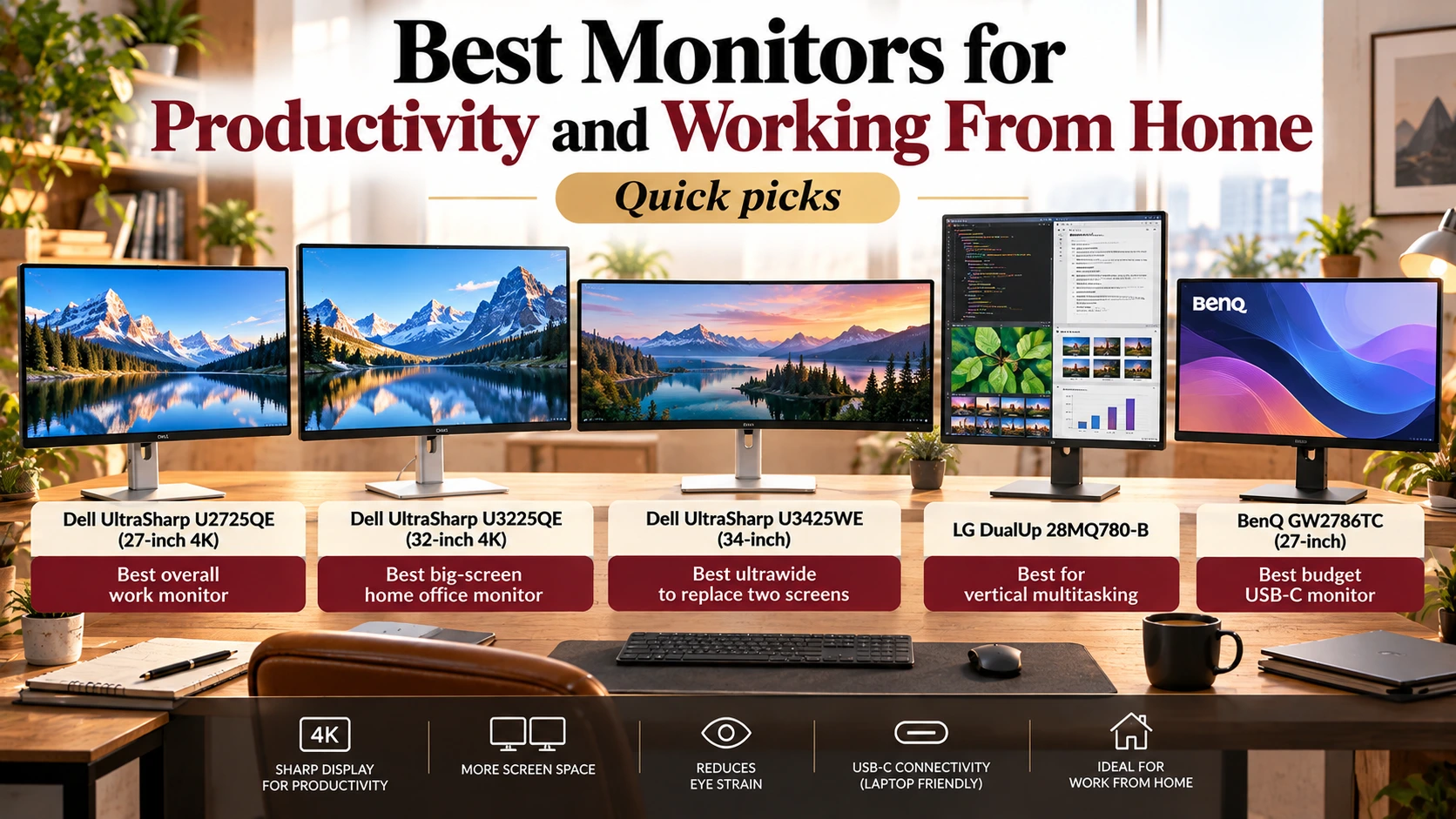
- Best overall work monitor: Dell UltraSharp U2725QE (27-inch 4K)
- Best big-screen home office monitor: Dell UltraSharp U3225QE (32-inch 4K)
- Best ultrawide to replace two screens: Dell UltraSharp U3425WE (34-inch)
- Best for vertical multitasking: LG DualUp 28MQ780-B
- Best budget USB-C monitor: BenQ GW2786TC (27-inch)
Disclosure: As an Amazon Associate, I earn from qualifying purchases. This costs you nothing extra.
Why a good monitor changes your workday
Working all day on a laptop screen means hunching over a small display and constantly switching between windows. An external monitor gives you more space to see your work, lets you raise the screen to a healthier height, and, with USB-C, can charge your laptop and connect your accessories through a single cable.
This guide compares the best monitors for productivity and working from home, explains which features matter, and shows you how to set one up properly.
How we chose: We have not tested these monitors ourselves. Our picks draw on lab testing and reviews from RTINGS and PCWorld, along with manufacturer specifications.
Comparison table
| Monitor | Size and resolution | Laptop connection | Best for | Price tier |
| Dell UltraSharp U2725QE | 27-inch 4K, IPS Black | Thunderbolt 4 / USB-C with laptop charging and hub | Most people | Premium |
| Dell UltraSharp U3225QE | 32-inch 4K, IPS Black | Thunderbolt 4 / USB-C with laptop charging and hub | Big single screen, docking | Premium |
| Dell UltraSharp U3425WE | 34-inch 3440×1440 curved ultrawide, IPS Black | Thunderbolt 4 with 90W charging, KVM, Ethernet | Replacing two monitors | Premium |
| LG DualUp 28MQ780-B | 28-inch, tall 16:18 aspect ratio | USB-C | Stacked windows, second monitor | Mid |
| BenQ GW2786TC | 27-inch 1080p | USB-C with charging; daisy-chain support | Budget single-cable setup | Budget |
Specs from manufacturer listings and reviews by RTINGS, PCWorld, and others. Check live prices on Amazon.
Does a bigger or second monitor really boost productivity?
The research says yes, with caveats. A widely cited University of Utah study found productivity gains of 44% for text tasks and 29% for spreadsheet tasks when moving from one screen to two. (Digital Engineering 24/7) Jon Peddie Research reported an average 42% productivity increase among multi-monitor users. (Make Tech Easier)
But read the fine print. The Utah study was commissioned by a monitor maker (NEC), much of this research is more than a decade old, and some figures are based on users’ own estimates. Critics note that a second screen only helps if you use it for work, such as keeping reference material visible while you write, rather than for distractions. (Make Tech Easier)
The practical takeaway: more screen space reduces window-switching, which is especially useful for writing with research open, comparing documents, or editing. One large, sharp monitor (27–34 inches) gives many people the same benefit as two smaller ones, with fewer cables.
Ergonomics matter as much as screen size
The US Occupational Safety and Health Administration (OSHA) recommends placing the monitor directly in front of you, at least 20 inches away, with the top line of the screen at or below eye level, and the screen perpendicular to windows to reduce glare. (OSHA) The US National Institutes of Health suggests roughly 20–26 inches, or about arm’s length. (NIH) That’s hard to achieve with a laptop alone, which is one of the best reasons to add a monitor.
How to choose a productivity monitor
- Size. 24 inches suits small desks; 27 inches is the sweet spot for most people; 32-inch and 34-inch ultrawide monitors give lots of room for side-by-side windows.
- Resolution. Text sharpness matters for all-day reading. At 27 inches, 1440p is good and 4K is excellent; avoid 1080p above 24–27 inches if you read a lot of text. At 32 inches, aim for 4K.
- USB-C or Thunderbolt with charging. One cable carries video, data, and power to your laptop. Check that the monitor’s charging wattage (e.g. 65W, 90W) matches or exceeds what your laptop needs.
- Built-in hub and KVM. USB ports and Ethernet turn the monitor into a docking station. A KVM switch lets you share one keyboard and mouse between a work and personal computer.
- Adjustable stand. Height, tilt, and swivel adjustment make it easy to follow ergonomic guidelines. If the stand doesn’t adjust, budget for a monitor arm.
- Panel type. IPS panels offer good color and viewing angles for office work; Dell’s “IPS Black” panels add deeper contrast.
- Refresh rate. 60Hz is fine for office work; 100–120Hz makes scrolling smoother.
- For Mac users: macOS renders text most crisply on high pixel-density screens, so a 4K (or higher) monitor at 27 inches is a good match.
The best monitors for productivity in 2026
1. Dell UltraSharp U2725QE: Best overall
RTINGS names the U2725QE the best monitor for home office setups and work it has tested, describing it as a high-end 27-inch 4K model loaded with extras. It offers an IPS Black panel and Thunderbolt 4 / USB-C connectivity with laptop charging and a full hub. (RTINGS; PCWorld)
- Pros: sharp 4K text, single-cable docking, extensive ports
- Cons: premium price
2. Dell UltraSharp U3225QE: Best big-screen home office monitor
PCWorld rates the U3225QE the best home office monitor overall and the best USB-C monitor overall. It’s essentially a larger 32-inch version of the U2725QE, giving more room for side-by-side windows. (PCWorld)
- Pros: huge 4K workspace, full Thunderbolt hub
- Cons: only a 60Hz refresh rate; needs a deep desk
3. Dell UltraSharp U3425WE: Best ultrawide to replace two screens
This 34-inch curved ultrawide (3440×1440, IPS Black) gives you two large work areas without a bezel in the middle. Reviews highlight Thunderbolt 4 with 90W laptop charging, a built-in KVM, and an Ethernet port for true one-cable docking. (Monitor Maven)
- Pros: replaces a dual-monitor setup; excellent docking features
- Cons: wide footprint; lower pixel density than a 27-inch 4K
4. LG DualUp 28MQ780-B: Best for vertical multitasking
PCWorld calls the DualUp the best USB-C monitor for productivity, praising its unusual tall aspect ratio, highly adjustable stand, and accurate color. It’s like two screens stacked vertically, ideal for documents, code, or as a second monitor beside a laptop. (PCWorld)
- Pros: great for long documents; very flexible stand
- Cons: unusual shape takes getting used to; not ideal for video
5. BenQ GW2786TC: Best budget USB-C monitor
For a simple single-cable setup at a lower price, the BenQ GW2786TC offers a 27-inch 1080p screen with USB-C laptop charging and, unusually at this price, daisy-chain support for adding a second monitor. (Thunderbolt Laptop)
- Pros: affordable USB-C docking, daisy-chain support
- Cons: 1080p text is softer at 27 inches than 1440p or 4K
For readers in India
Dell, LG, BenQ, and ASUS sell monitors in India through official channels, though exact models and prices differ from the US. Look for: 27 inches with 1440p or 4K, a USB-C port with enough charging wattage for your laptop, and a height-adjustable stand.
Monitor setup and ergonomics tips
- Center it. Place your main monitor directly in front of you to avoid twisting your neck.
- Set the height. The top of the screen should be at or slightly below eye level, so your eyes look slightly down toward the middle. (OSHA)
- Set the distance. About an arm’s length, or at least 20 inches, and adjust so you can read without leaning forward.
- Beat the glare. Position the screen perpendicular to windows rather than facing or backing onto them.
- Laptop plus monitor: raise the laptop on a stand to the same height as the monitor, and use an external keyboard and mouse.
- Two monitors: put the one you use most directly in front of you and the second to the side, or center both if you use them equally.
- Scale text. Increase display scaling if you find yourself squinting; a sharp screen at a comfortable size beats a cramped one.
- Rest your eyes. Look away into the distance regularly during long sessions.
FAQs
Is one big monitor better than two smaller ones?
For many people, yes. A 32-inch 4K or 34-inch ultrawide gives similar space with no bezel in the middle and fewer cables. Two monitors are useful if you want separate screens for different tasks.
What size monitor is best for working from home?
27 inches suits most desks and tasks. Go for 32-inch or ultrawide if you regularly work with several windows side by side.
Is 4K worth it for office work?
At 27 inches and above, 4K makes text noticeably sharper, which helps during long reading and writing sessions, especially on Macs.
What does USB-C charging on a monitor do?
It lets one cable carry video, data, and power to your laptop. Make sure the monitor’s wattage meets your laptop’s needs.
Can I connect a MacBook to these monitors?
Yes. All the USB-C and Thunderbolt monitors here work with MacBooks. Check how many external displays your specific MacBook model supports.
Do I need a high refresh rate for work?
No. 60Hz is fine for office work. Higher refresh rates (100–120Hz) make scrolling smoother but are optional.
How far should my monitor be from my eyes?
About an arm’s length, at least 20 inches, with the top of the screen at or slightly below eye level.
Final verdict
For most home offices, the Dell UltraSharp U2725QE is the monitor to buy: sharp 27-inch 4K text and true single-cable docking. Choose the U3225QE for a bigger 32-inch workspace, the U3425WE ultrawide to replace two monitors, or the LG DualUp for stacked windows. On a budget, the BenQ GW2786TC still gives you USB-C convenience.
Whichever you choose, set it at the right height and distance; your neck and eyes will thank you.
Disclosure: As an Amazon Associate, I earn from qualifying purchases. Product details were checked in October 2026 and may change.
References
- RTINGS. The best work monitors. rtings.com
- PCWorld. Best home office monitors. pcworld.com
- PCWorld. Best USB-C monitors. pcworld.com
- OSHA. Computer workstations eTool: monitors. osha.gov
- National Institutes of Health, Division of Occupational Health and Safety. Ergonomics: prevention. nih.gov
- Digital Engineering 24/7. Add visual velocity to boost engineering productivity. digitalengineering247.com
- Make Tech Easier. Do dual monitors improve productivity? maketecheasier.com